REMOTE DEVICE MANAGEMENT + DIAGNOSTICS

Your entire screen network.
Under your control.

See what is happening. Understand what went wrong. Take action from wherever you are. Voome brings fleet management and remote diagnostics together in one European enterprise platform.

One fleet viewAcross locations and device types
Diagnose remotelyFrom the alert to the underlying issue
Keep content playingWith local content and fallback settings

01 / MANAGE YOUR FLEET

One action.
Hundreds of screens.

Organize your network by Area, Branch and Zone. Apply updates to a selected group with Massive Actions.

Massive Actions
MilanParisMadrid+497devices
Example fleet · 500 devices ready

02 / UNDERSTAND THE ISSUE

Go deeper.
Stay at your desk.

Check heartbeat, snapshots, storage and device sensors. Read the evidence before deciding what to do next.

Device healthResponding
LAST HEARTBEATJust nowTEMPERATURE42.0 °C
Storage · 6 / 16 GBCPU · 14%
Example readings · supported device

03 / PROTECT CONTINUITY

Connection drops.
Content carries on.

Use Play Last Content to retain cached media, and device scheduling to manage display brightness and operating hours.

Playback continuityCache ready
NETWORK LOSTCached content
→
ON THE SCREENStill playing
Brightness & schedules on supported hardware

02 / FROM ALERT TO ACTION

Find the issue.
Follow it through to recovery.

Select a step to explore monitoring, snapshots, system health and remote action. Each view follows the diagnostic flow in the Voome interface.

Voome / DEVICESStep 01/04 · Monitoring
INTERACTIVE WALKTHROUGH · EXAMPLE DATA
SNAPSHOT 14:37:51
Voome Analytics Wall
Control Room Display RUNNING
Snapshot time:16 Oct, 14:37:51
Last connection:16 Oct, 14:38:01
!
⚠️ Diagnostic Alert:
• Snapshot is not up-to-date
• Calendar default activated
• Device offline (previous connection drop)
Terminal Video Wall ALERT
Default IP:10.111.1.127
Fallback:Play Last Content ON
Smart Queue
WORLD DONOR DAY
Ticket
S002
Stretch Screen T1 RUNNING
Network:Milan • Control Room
SN:001d502200d7
💡 Step 01: The Monitoring view highlights the affected endpoint. Open its details to investigate.

Explore the workflow safely: these controls illustrate the process and do not send commands to devices.

INSIDE THE PLATFORM

The real interface.
A closer look.

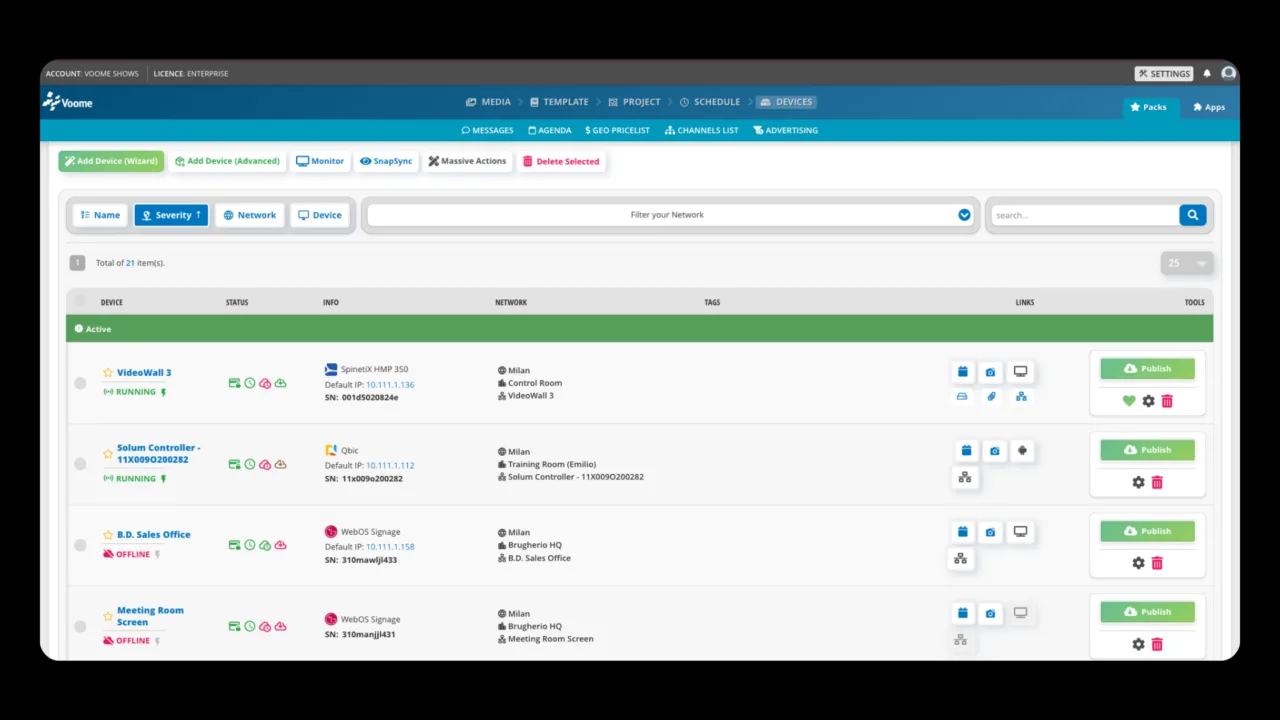
Explore original Voome screenshots: the fleet list, visual monitoring and detailed device health.

Open full-size screenshot ↗
Watch the platform walkthrough
Watch on YouTube ↗
Voome fleet list showing device status and remote publishing controls
Fleet list · status, network and remote controls

03 / REMOTE OPERATIONS IN PRACTICE

Different environments.
The same operational clarity.

Two scenarios show how the workflow supports a busy terminal and a distributed retail estate.

SCENARIO 01 / TRANSPORT

A video wall needs attention.
The terminal keeps moving.

01 · The challenge

A display stops showing the expected content during a busy period. A site visit would mean access arrangements and disruption.

02 · The investigation

The operator checks the last connection, snapshots and issue history, then inspects content and device health to distinguish a playback problem from a network or hardware fault.

03 · The action

Where the device is reachable, refresh content or restart the player remotely. Confirm the latest snapshot and status before closing the incident.

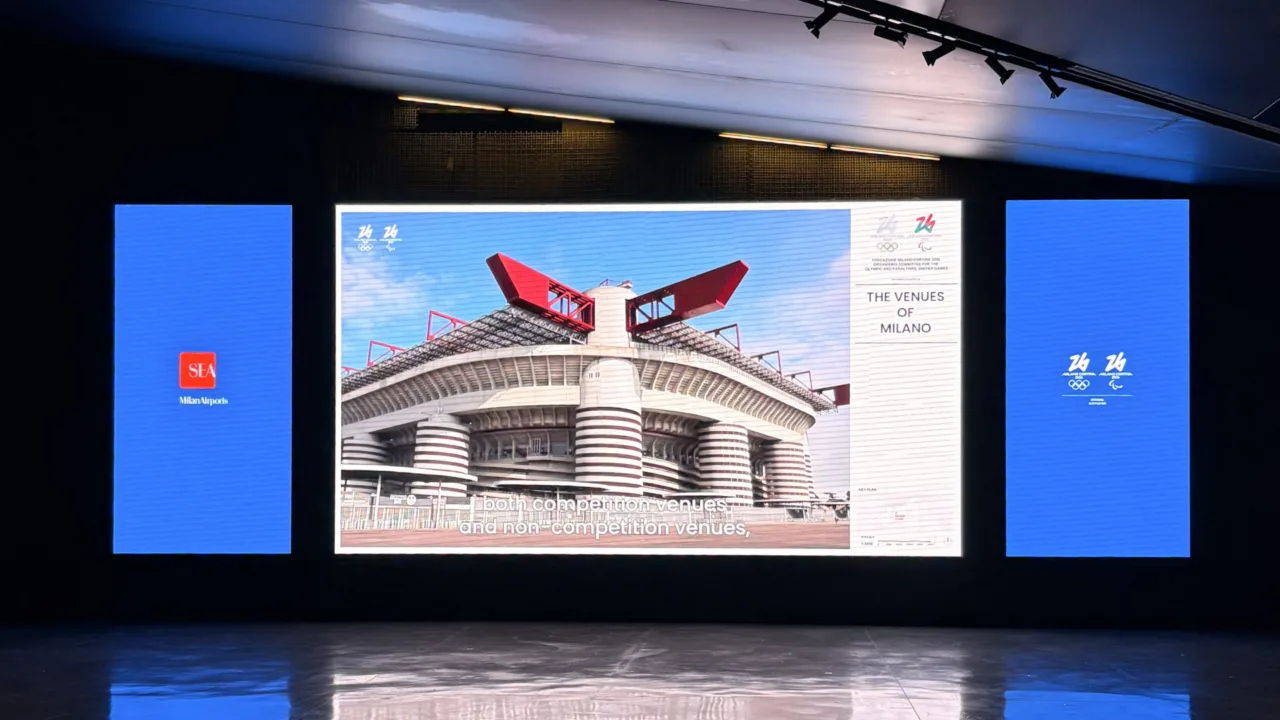
Large airport video wall with a central landscape display and two portrait screens
Airport display installation from the Voome media library. The incident described is an illustrative scenario.
Explore the recovery workflow

04 / THE TOOLS BEHIND THE WORKFLOW

Manage the fleet.
Understand every device.

Two complementary capabilities give IT and Operations a shared view of their screen network.

MODULE A / FLEET MANAGEMENT

Remote Device Management

01

Fleet analytics & monitoring

See device status, hardware identity and network structure in one place.

02

Massive Actions & onboarding

Register endpoints and apply content updates or configuration changes to selected groups.

03

Offline fallback & local playback

Use Play Last Content and available player settings to keep cached media on screen when connectivity is interrupted.

04

Device profiling & schedules

Configure compatible hardware properties, operating hours and brightness to match each location.

MODULE B / DIAGNOSTICS

Remote Diagnostic Tool

01

Logs & internal storage

Inspect system information and content storage to investigate playback or download issues.

02

Heartbeat & connectivity

Read last-contact information alongside device status to understand whether an endpoint is reachable.

03

Remote recovery commands

Refresh content, restart the player or reboot a supported device from the browser.

04

Snapshots, CPU & device sensors

Compare what is scheduled with what is on screen, and review available resource and sensor data.

CONNECTED TO THE HARDWARE

Built for the devices
in your network.

From integrated display players to dedicated hardware and touch panels, Voome brings different endpoints into one operating environment.

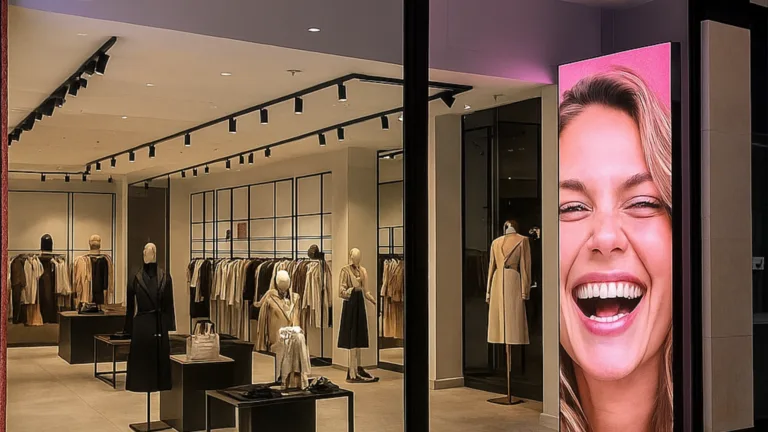
Portrait commercial display installed in a fashion store window

COMMERCIAL DISPLAYS

Samsung · LG · Hisense · iiyama

Manage compatible display players, settings and operating schedules across your sites.

SpinetiX HMP400 digital signage player

DEDICATED PLAYERS & LED WALLS

SpinetiX · Novastar

Support dedicated player and video-wall deployments with centralized visibility and device configuration.

Room booking touch panel with availability indicator and mobile check-in

TOUCH & WORKPLACE ENDPOINTS

Qbic · Elo

Bring interactive touchpoints and room-booking panels into the same device management workflow.

Available controls and telemetry depend on the device model, firmware and configuration. We can review your hardware mix during the demo.

EUROPEAN PLATFORM · ENTERPRISE OPERATIONS

Bring your screen network.
We’ll help you take control.

Walk through your devices, locations and support challenges with our team. See how fleet management and diagnostics fit your operating model.